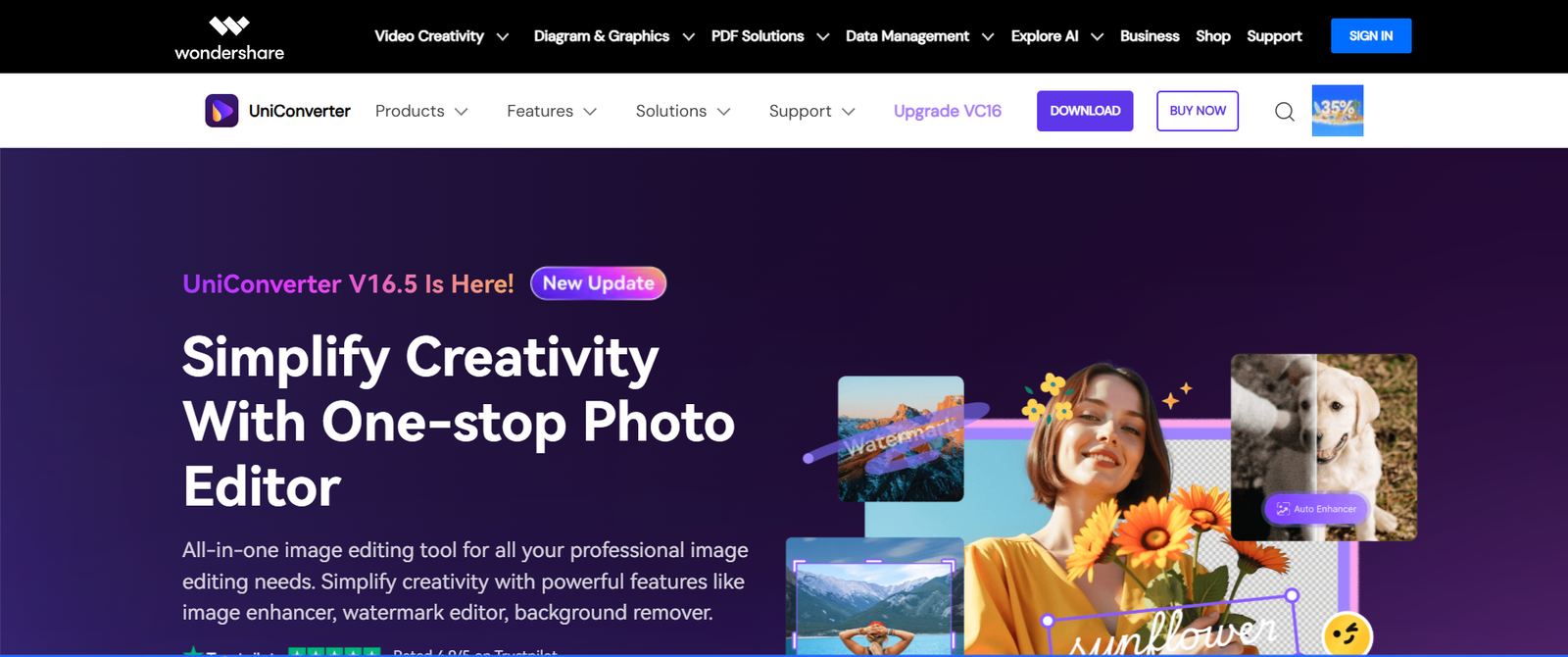
Wondershare UniConverter is a comprehensive video utility that combines video conversion, compression, editing, screen recording, and DVD burning into one streamlined desktop application. Built for content creators, marketers, educators, and casual users, UniConverter helps users handle nearly any video or audio file format quickly and professionally.
With support for over 1,000 file formats, high-speed conversion powered by GPU acceleration, and a simple drag-and-drop interface, Wondershare UniConverter is more than just a file converter—it’s a full media toolbox designed to meet modern digital needs.
Official website: https://videoconverter.wondershare.com
Features
1. High-Speed Video Conversion
Convert video and audio files between more than 1,000 formats, including MP4, MOV, AVI, MKV, MP3, and more. UniConverter supports high-speed conversion using GPU acceleration, making it ideal for large or high-resolution files.
2. Video Compression Without Quality Loss
Compress video files to smaller sizes while preserving visual and audio quality. Ideal for sharing videos online or storing them more efficiently.
3. Video Editing Tools
Trim, crop, add subtitles, apply filters, and adjust audio—all without needing separate editing software.
4. Screen Recording
Capture desktop activity, system audio, or webcam footage with customizable frame rates and output formats.
5. DVD Burning and ISO Creation
Create DVDs with menus or convert your videos to ISO files. Perfect for archiving or professional presentations.
6. AI-Powered Features
Remove or replace backgrounds in videos, upscale resolution, and auto-subtitle generation using AI.
7. Batch Processing
Convert or compress multiple files at once to save time, especially useful for large video libraries.
8. Online Video Downloader
Download videos from popular platforms like YouTube, Facebook, and Vimeo for offline use.
9. Audio Tools
Extract audio from videos, convert between audio formats, and burn audio CDs.
How It Works
Wondershare UniConverter is a desktop application available for both Windows and macOS. Here’s how the typical user workflow goes:
Download and Install
Visit the official website, download the appropriate version for your OS, and complete a simple installation process.Add Media Files
Drag and drop your video or audio files into the interface or select them manually.Choose an Output Format or Task
Select your desired output format, resolution, or action (convert, compress, edit, etc.).Customize (Optional)
Use the editing tools to trim, crop, or enhance your file. You can also add subtitles or apply watermarks.Start Processing
Hit “Convert” or “Start” and let the software handle the task. GPU acceleration ensures quick processing speeds.Export or Burn
Download the output file to your system or burn it to a DVD directly.
UniConverter’s interface is clean and beginner-friendly, making it suitable for users of all technical levels.
Use Cases
1. Content Creators
Convert large 4K videos for YouTube, compress them for social media, and add professional edits—all in one tool.
2. Educators
Record lectures, compress them for easy sharing, or burn them onto DVDs for offline access.
3. Businesses
Format marketing videos for different platforms, compress them for email, or add branding elements.
4. Home Users
Convert home videos into universally supported formats or archive media onto DVDs.
5. Freelancers & Agencies
Handle client media files efficiently, reduce file sizes, and deliver videos optimized for different platforms.
Pricing
As of June 2025, Wondershare UniConverter offers the following pricing plans:
Windows Plans
Annual Plan – $39.99/year
Full access to all features
Free updates within the year
1 PC license
Perpetual Plan – $79.99 (one-time payment)
Lifetime access
Free updates within version generation
1 PC license
Mac Plans
Annual Plan – $49.99/year
Perpetual Plan – $89.99 one-time
Business Plans
Team & Business Pricing – Custom
Multiple licenses
Volume discounts
Technical support
Free trials are available with limited access and watermarked outputs. For detailed pricing, visit: https://videoconverter.wondershare.com/purchase.html
Strengths
All-in-One Media Toolkit
Offers a complete set of tools beyond conversion—editing, compressing, downloading, and burning.
Fast Performance
GPU acceleration significantly reduces wait times for high-res conversions and batch processes.
Wide Format Support
Supports over 1,000 media formats, covering virtually all audio and video types.
User-Friendly Design
Clean interface with easy navigation and beginner-friendly functionality.
AI-Driven Features
Automated subtitle generation, video upscaling, and background removal make tasks faster and smarter.
Offline Access
Unlike online converters, UniConverter runs locally—ensuring privacy and faster processing speeds.
Drawbacks
Desktop Only
The software must be downloaded and installed—there is no cloud-based or mobile version.
Watermarks on Free Version
The trial version includes watermarks and limited access to advanced features.
Separate Licenses for Windows and Mac
Users must buy individual licenses per operating system.
Premium Features Behind Paywall
While powerful, many of the most useful tools (AI, batch processing, full video editing) are locked behind paid tiers.
Comparison with Other Tools
Wondershare UniConverter competes with tools like HandBrake, Freemake Video Converter, and Movavi Video Converter. Here’s how it stacks up:
Compared to HandBrake: HandBrake is open-source and free but lacks a full UI and editing features. UniConverter is more user-friendly and feature-rich.
Compared to Freemake: Freemake offers good basic functionality but includes watermarks even after purchase unless you pay extra.
Compared to Movavi: Movavi is a close competitor with similar pricing and features, but UniConverter stands out for its broader format support and AI integrations.
For users looking for more than basic video conversion—such as editing, DVD burning, and media management—UniConverter is a top-tier option.
Customer Reviews and Testimonials
Users across industries have given positive feedback about Wondershare UniConverter on platforms like Trustpilot and G2:
“Wondershare UniConverter saved me hours of work. I batch converted and compressed 30 videos in one evening.” – Video Editor
“I’m not tech-savvy, but this tool made it easy to prepare my videos for my online courses.” – Instructor
“Worth every penny. I use it for converting, editing, and compressing client videos regularly.” – Freelancer
Users consistently highlight its speed, usability, and all-in-one capabilities.
Conclusion
Wondershare UniConverter is one of the most comprehensive and user-friendly video tools available today. Whether you’re a content creator, educator, or business owner, it provides everything you need to convert, compress, edit, and manage media files—without juggling multiple apps.
With AI-powered features, high-speed processing, and support for over 1,000 formats, Wondershare UniConverter offers excellent value for individuals and teams alike.