
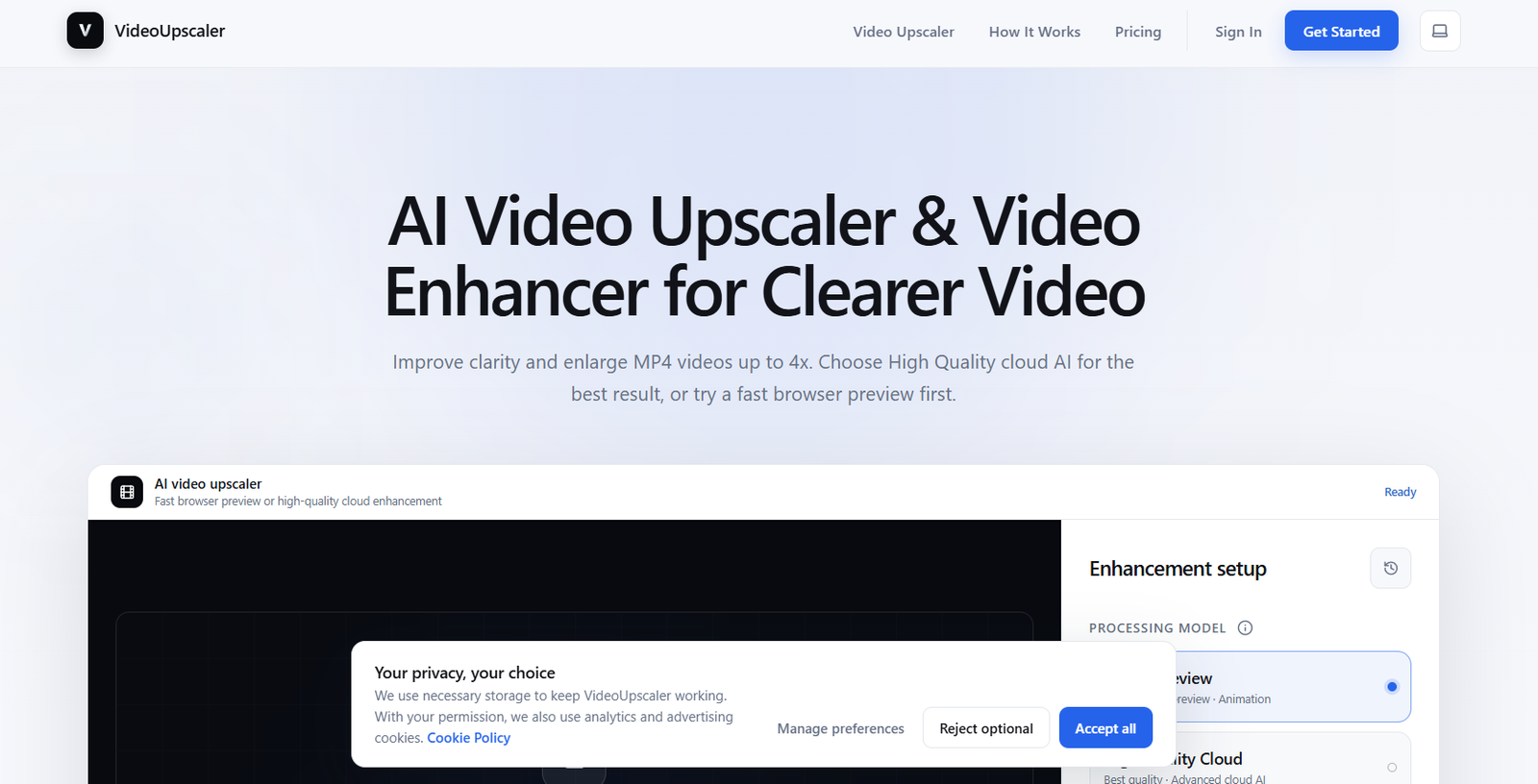
VideoUpscaler is an AI powered online video enhancement tool designed to improve the resolution, clarity and visible detail of existing videos. Users can upload an MP4 video and enlarge it by either 2x or 4x using AI based processing.
The platform provides two main processing approaches. Its High Quality Cloud option uses advanced cloud based AI for the strongest enhancement, while Anime Preview provides faster browser based processing for testing animated content before using cloud credits.
VideoUpscaler can be useful for improving older recordings, low resolution videos, animation, outdoor footage and fast moving scenes such as sports. The goal is not simply to make the video dimensions larger, but also to improve how details appear at the higher resolution.
The service works directly through a web browser, so users do not need to install professional video enhancement software. It currently accepts MP4 videos up to 500 MB and 30 minutes in length.
Features
AI Video Upscaling
VideoUpscaler uses AI to enlarge videos while attempting to preserve and improve visible detail.
Users can select either 2x or 4x output scaling depending on how much they want to increase the size of the original video.
High Quality Cloud AI
High Quality Cloud is the platform’s main enhancement model and is recommended when users want the best available result.
Processing takes place using cloud based AI infrastructure and is more advanced than the quick browser preview option.
2x Video Upscaling
Users can choose 2x enlargement when they need a moderate increase in video size.
This can be appropriate when the original footage needs improvement without being enlarged too aggressively.
4x Video Upscaling
The 4x option provides a much larger increase in output size.
It can be useful for lower resolution footage that needs to be displayed on larger or higher resolution screens, although final quality will still depend heavily on the source material.
Anime Preview
VideoUpscaler provides a fast browser based Anime Preview mode for animated videos.
It is intended to let users quickly test how animation may look after enhancement without consuming cloud credits.
The platform makes clear that this preview is not intended to match the final quality of its High Quality Cloud model.
Local Browser Processing
Anime Preview can run directly on the user’s device.
The source video does not need to be uploaded to VideoUpscaler’s cloud infrastructure when using this supported local preview workflow, providing additional privacy for quick testing.
Old Video Enhancement
Users can process older and low resolution recordings to make them easier to view on modern displays.
AI enhancement may improve visible clarity, although it cannot perfectly recreate details that were never captured in the original recording.
Anime and Animation Enhancement
The platform is designed to improve visual elements such as lines, faces and details within animated content.
This makes it useful for animation creators and users working with older or lower resolution animated footage.
Outdoor Footage Enhancement
VideoUpscaler can process landscapes and outdoor recordings.
Its AI attempts to improve visible details involving people, skies, scenery and distant objects.
Sports and Action Video Enhancement
The tool can also process fast moving footage such as sports videos.
Enhancement can make subjects, players and scene details easier to see, although results depend on motion blur and the quality of the original recording.
Video Trimming
Users can trim a video before processing when only a particular section requires enhancement.
This can reduce unnecessary cloud processing and credit consumption.
MP4 Export
Completed High Quality Cloud enhancements can be downloaded as MP4 files.
The enhancement interface also presents export options depending on the selected processing workflow.
Processing History
Cloud based processing can continue while users leave the immediate processing screen. Users can return later to preview and download completed results through supported account history functionality.
Commercial Use
Subject to its terms and applicable rights, VideoUpscaler allows downloaded results to be used for personal or commercial purposes.
Users remain responsible for ensuring they have the necessary rights to the original material.
How It Works
Step 1: Upload the video
Open VideoUpscaler and select an MP4 video from your device.
The current upload limit is 500 MB and 30 minutes.
Step 2: Trim if necessary
If only part of the recording needs improvement, trim the video before starting the enhancement.
Step 3: Select a processing model
Choose High Quality Cloud when maximum available enhancement is the priority.
For animated content, users can first experiment with the faster Anime Preview in their browser.
Step 4: Select the scale
Choose either 2x or 4x enlargement according to the intended output.
Step 5: Start enhancement
Allow the selected AI model to process the footage.
Cloud enhancement can take longer than browser previews because it performs more advanced processing.
Step 6: Preview the result
Review the enhanced video carefully for improvements as well as possible AI generated artifacts.
Step 7: Download
Once cloud processing is complete, download the enhanced video in the available output format.
Use Cases
Content Creators
Creators can improve older or lower resolution footage before using it in new YouTube videos, social media posts or other content.
YouTubers
YouTubers can upscale archived footage when repurposing older material for modern higher resolution videos.
Animation Creators
Animation users can experiment with the browser based Anime Preview before processing the final video through the higher quality cloud model.
Video Editors
Editors can enhance lower quality source footage before incorporating it into a larger production.
Social Media Creators
Creators working with older clips can improve resolution before republishing content on modern social platforms.
Sports Creators
Sports and action footage can be processed to make players and scene details more visible.
Family Video Restoration
Users can experiment with improving older digital family recordings that have relatively low resolution.
Businesses
Companies can enhance older product demonstrations, presentations and marketing videos before reusing them in newer campaigns.
Digital Archivists
Users working with older digital video collections can upscale selected recordings for easier viewing on current displays.
Pricing
VideoUpscaler uses cloud credits for its High Quality Cloud processing and its terms confirm that paid plans, subscriptions or cloud credit purchases may be offered.
Cloud credit usage can vary according to factors such as video duration, source resolution and selected output scale.
However, exact current plan prices and credit packages are not clearly presented in the publicly accessible official website information reviewed.
Therefore, pricing details are not clearly mentioned on the official website.
The platform does provide Anime Preview processing in the browser without using cloud credits.
VideoUpscaler also states that eligible purchases have a 7 day refund window, unless different conditions are shown during checkout.
Strengths
VideoUpscaler has a straightforward workflow that does not require professional video editing knowledge.
Users can increase video size by up to 4x while applying AI based enhancement rather than relying only on conventional enlargement.
High Quality Cloud provides a more advanced processing option when output quality is important.
The browser based Anime Preview is useful because users can test animated footage quickly without consuming cloud credits.
Local browser previews also provide a privacy advantage because supported preview processing keeps the source video on the user’s device.
Video trimming helps users process only the section they actually need.
Support for old footage, animation, outdoor scenes and sports makes the service useful for several common video enhancement scenarios.
The browser based workflow also avoids the need to install large desktop video enhancement software.
Drawbacks
VideoUpscaler currently accepts only MP4 uploads, which is more restrictive than platforms supporting a wide range of video formats.
Individual videos are currently limited to 500 MB and 30 minutes.
Users working with long videos or very large high bitrate files may therefore need to trim or compress their footage first.
High Quality Cloud requires the source video to be uploaded for online processing.
AI enhancement cannot recover every detail missing from poor quality source footage. The resulting video may also contain artificial details, artifacts or unexpected visual changes.
The platform itself warns that AI enhanced videos can contain lost details or unexpected changes, so users should always review the output.
Exact pricing is also not clearly available through the main public information reviewed, making cost comparison with competing video enhancement platforms more difficult.
Comparison with Other Platforms
VideoUpscaler competes with AI video enhancement platforms that specialize in increasing resolution and improving the appearance of low quality footage.
Compared with professional desktop video enhancement software, VideoUpscaler offers a simpler browser based workflow. Users do not need to configure complicated processing settings or install demanding software.
Its combination of local browser previews and higher quality cloud processing is useful because users can choose between speed and final output quality.
Compared with general online video editors, VideoUpscaler is more focused. Its primary purpose is improving and enlarging existing video rather than providing a complete suite for cutting, transitions, effects, captions and full video production.
More advanced professional enhancement platforms may provide greater control over noise reduction, frame interpolation, stabilization and individual AI models. VideoUpscaler is better suited to users who prioritize a straightforward upload, enhance and download workflow.
Customer Reviews and Testimonials
Customer reviews and testimonials are not clearly available on the official website.
The website currently focuses mainly on explaining its enhancement models, supported footage, processing workflow and before and after examples.
Conclusion
VideoUpscaler is a simple AI video enhancement tool for users who want to increase video resolution and improve visible clarity without learning professional enhancement software.
Its main workflow is easy to understand: upload an MP4, select 2x or 4x enlargement, choose a processing option and generate an enhanced version.
The High Quality Cloud model is intended for the strongest available enhancement, while the browser based Anime Preview gives animation users a quick way to experiment without consuming cloud credits.
The platform may be particularly useful for YouTubers, social media creators, video editors, businesses and individuals working with older recordings, animation, outdoor scenes or action footage.
Its limitations include MP4 only uploads, a 500 MB file limit, a 30 minute duration limit and the possibility of AI generated artifacts. Users should also remember that upscaling cannot fully restore visual information that was absent from the original recording.
Overall, VideoUpscaler offers a focused and accessible option for users who want quick AI based video enlargement and enhancement directly from a web browser.


